
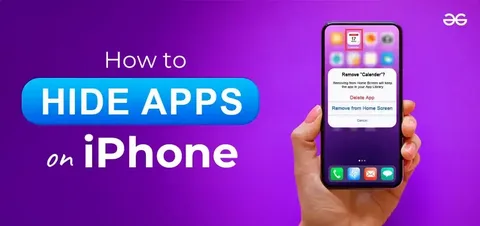

Your iPhone holds more about your personal life than most people realize. Banking credentials, medical apps, dating profiles, private messages it is all sitting right there on your home screen, one curious glance away from someone who should not be seeing it.
Whether a coworker borrows your phone to make a call, a child swipes through your screen, or you simply want a cleaner digital space, knowing how to hide apps on iPhone is one of the most practical privacy skills you can have. And thanks to iOS 18, Apple has made this easier than ever with real, biometric grade protection built directly into the operating system.
This guide walks you through six proven methods for hiding apps on your iPhone, from the quick and casual to the genuinely secure. No jailbreaking. No third party apps. Just clean, effective privacy on a device you already own.
Why You Might Want to Hide Apps on Your iPhone
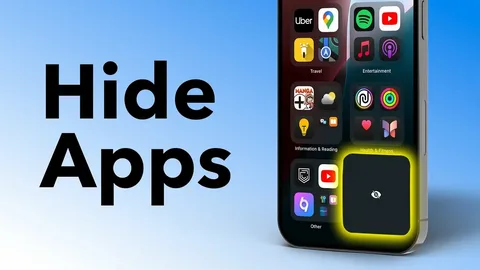
People hide apps for all kinds of reasons, and none of them require any justification. Privacy is a right, not a red flag.
Here are the most common motivations:
- Personal privacy: Apps like therapy platforms, fertility trackers, or mental health journals are nobody else’s business.
- Financial security: Banking apps, crypto wallets, and investment tools should stay out of reach if someone else picks up your phone.
- Parental boundaries: If your child uses your device, hiding certain apps keeps them from accessing content that is not age appropriate.
- Digital minimalism: Sometimes you just want a clean home screen without deleting apps you still use occasionally.
- Workplace separation: If you use one device for both work and personal life, hiding certain apps keeps things professionally appropriate during screen shares or presentations.
Understanding your own reason helps you pick the right method. Some of these approaches simply move apps out of sight; others add a genuine layer of security with Face ID or Touch ID. Let us go through all six.
Method 1: Use iOS 18’s Built In Hide and Lock Feature
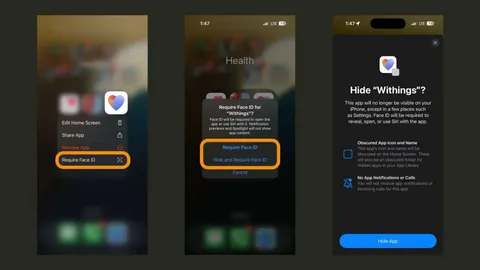
This is the most powerful method available for how to hide apps on iPhone today, and it is native to iOS 18 and later. When you use this feature, the app disappears from your home screen entirely and moves into a locked Hidden folder inside your App Library accessible only with Face ID, Touch ID, or your passcode.
Here is how to do it:
- On your home screen, press and hold the app icon you want to hide.
- When the context menu appears, tap Require Face ID (or Touch ID or Passcode).
- Tap Hide and Require Face ID from the options.
- Authenticate with your biometrics or passcode.
- Tap Hide App to confirm.
The app vanishes from your home screen immediately. It also disappears from Spotlight Search results, Siri suggestions, and notification previews which is what makes this method genuinely private, not just visually tidy.
To access your hidden apps after this, swipe left past all your home screen pages to reach the App Library. Scroll to the very bottom and tap the Hidden folder. You will need to authenticate with Face ID before it opens.
One important note: this feature only works with apps you have downloaded from the App Store. Pre-installed Apple apps like Settings, Safari, and Camera cannot be hidden this way only locked.
Method 2: Remove Apps from the Home Screen
If you do not need a biometric lock but simply want to clear an app from view, removing it from the home screen is the fastest route. The app stays fully installed and accessible via the App Library or Search it just does not sit on your home screen any longer.
Steps:
- Press and hold the app icon on your home screen.
- Tap Remove App from the menu.
- Select Remove from Home Screen (not Delete App that would uninstall it).
The app is now gone from your home screen but lives quietly in your App Library. To find it, swipe left past your home screen pages, then either browse by category or use the search bar at the top.
This method is perfect for apps you use rarely but do not want to delete. Social media apps you are taking a break from, games you play occasionally, or utility apps you only need once in a while are ideal candidates.
Keep in mind that anyone who knows to swipe into the App Library, or who uses the search bar, can still find these apps without any authentication. For real privacy, combine this with Method 5 to also hide the app from search results.
Method 3: Hide Entire Home Screen Pages
If you have an entire category of apps you want out of view say, a gaming page, a social media collection, or a group of productivity tools you are stepping back from you can hide a full home screen page at once.
This is one of the most underrated features in iOS, and it works starting with iOS 14.
How to hide a home screen page:
- Press and hold an empty area of your home screen until the apps begin to jiggle.
- Tap the row of dots near the bottom of the screen (the page indicator).
- You will see thumbnails of all your home screen pages.
- Tap the checkmark beneath any page to uncheck it and hide it.
- Tap Done to save.
The hidden pages and their apps are still accessible through the App Library or search they are simply removed from the swipeable home screen flow. To restore them, repeat the steps and re check the page thumbnail.
This method works brilliantly for seasonal apps (holiday trackers, event planning tools), or any set of apps you want out of your daily field of view without removing them from your device.
Method 4: Tuck Apps Inside Folders
This is one of the oldest iPhone organization tricks, and while it does not offer biometric security, it is still an effective way to reduce visibility. Nesting an app inside a folder especially one placed on the second or third page of that folder keeps casual observers from spotting it at a glance.
To create a folder:
- Press and hold an app icon until the icons begin to jiggle.
- Drag the app on top of another app. iOS automatically creates a folder.
- Rename the folder to something generic like “Utilities” or “Tools.”
- Drag the apps you want less visible to the back pages of the folder.
For an added layer of obscurity, place the folder itself on a later home screen page, or move it into the App Library without leaving it on the home screen at all.
This method is best for low stakes situations reducing clutter or keeping casual viewers from noticing an app at a glance. It is not a security measure. Anyone who taps into the folder or uses the search bar will find the app immediately.
Method 5: Suppress Apps from Siri and Spotlight Search
Here is something most people overlook when learning how to hide apps on iPhone: even after removing an app from your home screen, it can still surface in Spotlight Search results and Siri suggestions. That means a single swipe-down search could reveal exactly what you were trying to keep private.
Fortunately, iOS lets you disable this completely.
Steps to hide an app from Siri and Search:
- Open the Settings app.
- Tap Apple Intelligence & Siri (or Siri & Search on older iOS versions).
- Scroll down and tap the app you want to suppress.
- Toggle off Show on Home Screen, Suggest App, and Suggestion Notifications.
Once these toggles are off, the app will not appear when someone types its name into the search bar, and Siri will not suggest it based on your usage patterns. This is an essential companion step to any of the earlier methods if your goal is genuine privacy rather than just visual tidiness.
Method 6: Hide Apps from Your App Store Purchase History
This is a detail most people miss entirely. Even if an app is hidden from your home screen and suppressed from search, its name still appears in your App Store purchase history which anyone with access to your Apple ID can browse.
If you want to remove an app from this list too, here is how:
- Open the App Store app.
- Tap your profile photo or initials in the top right corner.
- Tap your name or Apple Account.
- Tap Purchased (or My Purchases if using Family Sharing).
- Find the app, swipe left on it, and tap Hide.
The app disappears from your visible purchase list. It is still associated with your account and can be redownloaded at any time it is just no longer displayed. To view or unhide it later, go to App Store > Profile > Hidden Purchases.
This step is especially relevant if family members share an Apple ID, or if someone could access your account from another device.
How to Find Your Hidden Apps Again
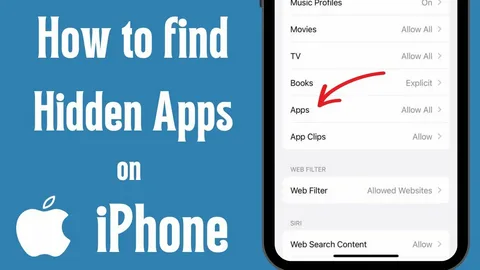
Hidden apps are never truly gone they are always accessible if you know where to look. Here is a quick reference:
- iOS 18 hidden apps (biometric-locked): Swipe to the App Library → scroll to the bottom → tap Hidden folder → authenticate with Face ID.
- Apps removed from home screen: Open App Library or swipe down from the home screen to search by name.
- Hidden App Store purchases: App Store → Profile → scroll to Hidden Purchases.
- Suppressed from Siri/Search: Toggle them back on in Settings → Apple Intelligence & Siri → [App name].
Important Limitations to Know
Understanding what Apple’s hiding features cannot do is just as valuable as knowing what they can. A few key caveats:
Pre-installed apps cannot be hidden. Apps that come bundled with iOS like Safari, Camera, Settings, and Calculator can be locked with Face ID, but they cannot be moved to the Hidden folder or removed from the App Library.
Hidden status does not sync with iCloud. If you hide an app on your iPhone, it will still be visible on your iPad or Mac. The setting is device-specific.
App names remain visible in some system locations. Even after hiding an app, its name can still appear in Screen Time reports, Battery Usage by App in Settings, and your App Store purchase history (unless you also complete Method 6).
Children under 13 in Family Sharing cannot hide apps. Teenagers aged 13–17 can hide apps, but a parent or guardian in the family group can still see that the app was downloaded.
Conclusion
Your phone is personal, and you get to decide what is visible on it. Knowing how to hide apps on iPhone is not about secrecy for its own sake it is about having control over your own digital life.
For the strongest privacy, the iOS 18 built-in hide feature (Method 1) is your best option, especially when paired with suppressing the app from Siri and Search (Method 5) and removing it from your purchase history (Method 6). For lighter use cases decluttering, reducing distraction, or keeping your home screen clean simply removing apps from the home screen or tucking them into folders gets the job done.
The best approach is often a combination of methods tailored to your specific situation. A banking app deserves Face ID protection. A social media app you are avoiding might just need a quiet home in the App Library. The tools are all built into your iPhone now you know exactly how to use them.
Frequently Asked Questions
Can I hide pre installed Apple apps on my iPhone?
Pre installed apps like Safari, Camera, and Settings cannot be moved to the Hidden folder, but you can lock them with Face ID or Touch ID so they require authentication to open. Full hiding is only available for apps downloaded from the App Store.
Will hiding an app delete it from my iPhone?
No. Hiding an app never uninstalls it. The app remains fully installed on your device and retains all its data. You can unhide it at any time and pick up exactly where you left off.
Can someone find my hidden apps even after I hide them?
With iOS 18’s biometric hide feature, the app is protected by Face ID, Touch ID, or your passcode. However, the app name may still appear in Screen Time reports and Battery Usage settings. For basic methods like folder hiding or removing from the home screen, the app can still be found via Spotlight Search unless you also disable it in Siri & Search settings.
Does hiding an app affect its notifications?
Yes. When you use the iOS 18 hide and lock feature, the app’s notifications are also suppressed previews will not appear on your lock screen or in notification history. This is part of what makes it a genuinely private option rather than just a visual change.
How do I hide apps on an older iPhone running iOS 17 or earlier?
The biometric hide and lock feature requires iOS 18. On earlier versions, you can still remove apps from the home screen, hide entire home screen pages, use folder based organization, and suppress apps from Siri and Search all of which are available from iOS 14 and up.